Terminals
Terminal size, colour, ASCII and mouse settings.
How you got here: Desktop app Terminal only: TUI and CLI One server for everything Screens
Show previous steps 4
Install 2
- Desktop app
Download the desktop app for your OS and open it.
The macOS zip holds Jumpgate.app and Jumpgate Terminal.app; Windows has jumpgate-tray.exe and jumpgate.exe; Linux has install.sh. Every download carries both Linux agents.
Show image
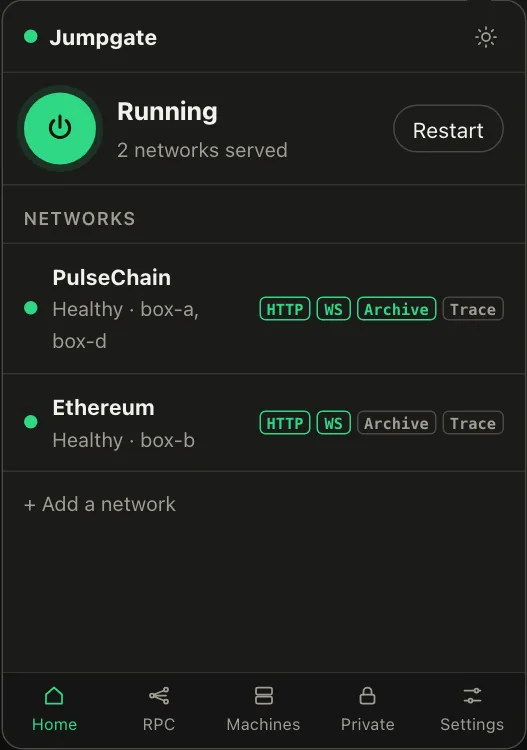
Illustration from the jumpgate.app demo, with made-up boxes; not a screenshot of the app. - Terminal only: TUI and CLI
The jumpgate binary alone, for servers and scripts.
The jumpgate_<os>_<arch> archives hold one binary with the TUI, the CLI and the server. Run jumpgate in a terminal to open the TUI.
Show image
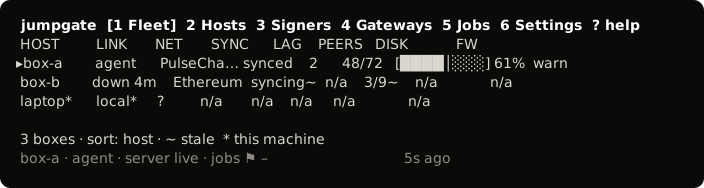
The TUI, from its test snapshot; empty rows removed.
Getting started 1
- One server for everything
The app, TUI and CLI share one background server.
Whichever starts first runs the server; quitting the TUI leaves it running and jumpgate stop ends it.
The TUI 1
- Screens
The six screens: Fleet, Hosts, Signers, Gateways, Jobs, Settings.
1 to 6 switch screens; Enter on a box opens its tabs, from Overview to Services.
Show image
The TUI, from its test snapshot; empty rows removed.
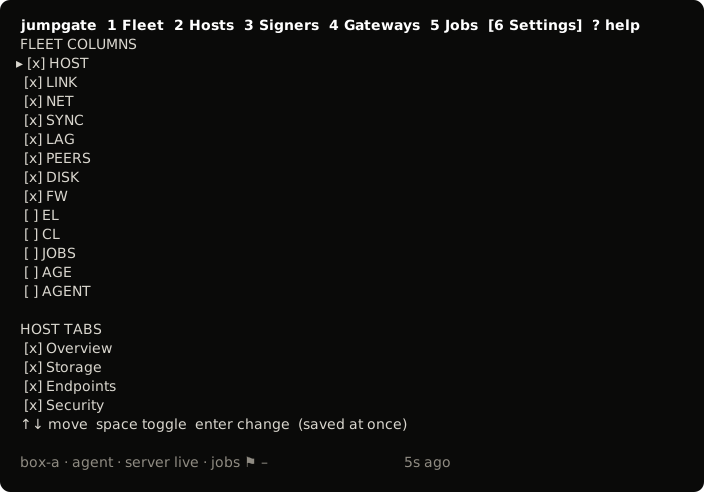
- The TUI needs 80x24.
- Mouse support is off by default so you can select text. Turn it on in Settings.
NO_COLOR=1drops colour.JUMPGATE_ASCII=1uses plain ASCII drawing, which is automatic on the classic Windows console and the Linux virtual console.jumpgate home,JUMPGATE_PLAIN=1orTERM=dumbshows the plain line-based screen instead.jumpgate tuiopens the TUI explicitly, and refuses to run without a terminal.- Turn on "Bell on jobs that need you" in Settings to have the terminal ring when the jobs count goes up.