Screens
The six screens: Fleet, Hosts, Signers, Gateways, Jobs, Settings.
How you got here: Desktop app Terminal only: TUI and CLI One server for everything
Show previous steps 3
Install 2
- Desktop app
Download the desktop app for your OS and open it.
The macOS zip holds Jumpgate.app and Jumpgate Terminal.app; Windows has jumpgate-tray.exe and jumpgate.exe; Linux has install.sh. Every download carries both Linux agents.
Show image
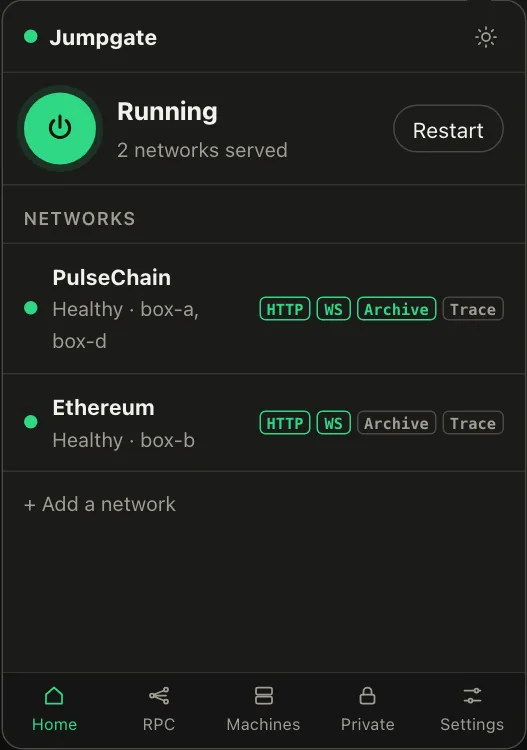
Illustration from the jumpgate.app demo, with made-up boxes; not a screenshot of the app. - Terminal only: TUI and CLI
The jumpgate binary alone, for servers and scripts.
The jumpgate_<os>_<arch> archives hold one binary with the TUI, the CLI and the server. Run jumpgate in a terminal to open the TUI.
Show image
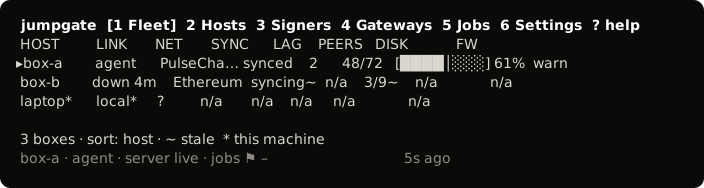
The TUI, from its test snapshot; empty rows removed.
Getting started 1
- One server for everything
The app, TUI and CLI share one background server.
Whichever starts first runs the server; quitting the TUI leaves it running and jumpgate stop ends it.
- 1 Fleet: every box at once: link, network, sync, lag, peers, disk and firewall. Settings adds or hides columns.
- 2 Hosts: add, pair and remove boxes. Enter opens a box, with the tabs Overview, Storage, Endpoints, Security, Logs and Services.
- 3 Signers: this controller's key and the boxes it signs for.
- 4 Gateways: your gateways, read-only. Change them in the app.
- 5 Jobs: the jobs inbox, with each job's steps, lease and question. The flag count in the status bar is the number of jobs waiting for you across the fleet.
- 6 Settings: fleet columns, host tabs and other preferences, saved at once.