- Docs
- Getting started
- One server for everything
One server for everything
The app, TUI and CLI share one background server.
How you got here: Desktop app
Show previous steps 1
Install 1
- Desktop app
Download the desktop app for your OS and open it.
The macOS zip holds Jumpgate.app and Jumpgate Terminal.app; Windows has jumpgate-tray.exe and jumpgate.exe; Linux has install.sh. Every download carries both Linux agents.
Show image
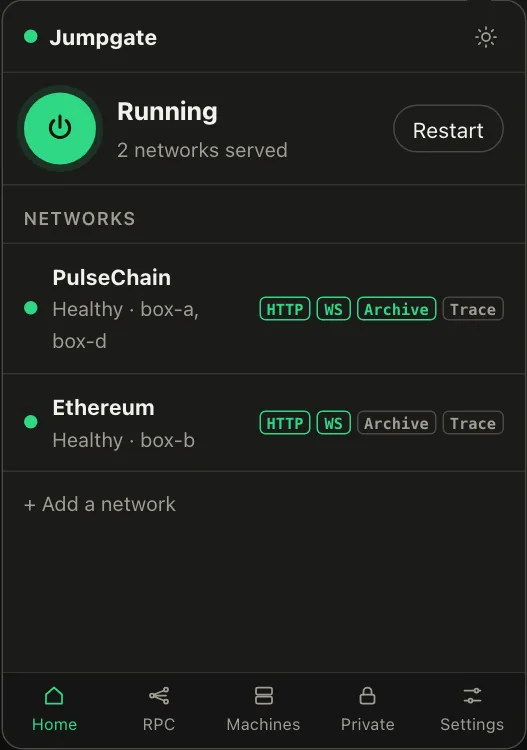
Illustration from the jumpgate.app demo, with made-up boxes; not a screenshot of the app.
The app, the TUI and the CLI share one server per user. The TUI and the CLI start it in the background, and quitting the TUI leaves it running; jumpgate stop ends it. If the desktop app is first, the server runs inside the app and stops when you quit it.
On Linux over SSH, the background server survives closing the terminal. Where systemd-logind kills a user's processes at logout (KillUserProcesses=yes), run loginctl enable-linger $USER once so it also survives the SSH session ending.